Content Deployment Strategies and Content Management
- Reading time: 20 minutes
- Documentation reading time: 30 minutes
- Hands-on exercise time: 15-30 minutes
As an administrator, understanding how content gets deployed and published to Posit Connect is essential for advising users and troubleshooting effectively. For content to be published as intended by their authors, you also need to understand how to manage runtime environments in Connect. What should happen when the version of R or Python expected by a piece of content is not installed on Connect? How are repositories for packages managed? We will explore this in this chapter.
Content Publishing Methods
As introduced in the Connect overview, there are three ways to publish content on Posit Connect, described below.
Connect now also includes a Gallery of content examples that allows direct publishing from templates curated by the Posit team.
2. Git-backed publishing
Git-backed publishing automatically updates content from a Git repository. Connect polls repositories at regular intervals (default: every 15 minutes, configurable via the Git settings) and triggers deployment when changes are detected.
Best use case: Teams collaborating on content using Git-based version control (for example GitHub, GitLab, Bitbucket, Azure DevOps, etc).
3. Programmatic publishing (via API)
The Connect API provides the most flexible deployment method. To use this approach, you need an API key that can be generated from the web interface. You can interact with the API through:
- Direct API endpoint calls (using
curlfor instance) - The command line using the
[rsconnect-python](https://docs.posit.co/rsconnect-python/)CLI tool. - The
{rsconnect}package in R.
Best use case: Teams collaborating on content using Git version control, and with complex workflows requiring automated testing, data preprocessing, or integration with existing CI/CD systems.
For detailed examples, see the Connect Cookbook.
How Content Publication Works
Bundle Creation and Structure
When you publish content to Connect, your code, data files, and assets are packaged into a bundle, a deployment package containing everything needed to execute and render your content, and a manifest file is created.
Each bundle contains:
- Source code (Shiny app, Quarto report, etc.)
- Manifest file describing content requirements and metadata
- Assets (data files, images, fonts, scripts, etc.)
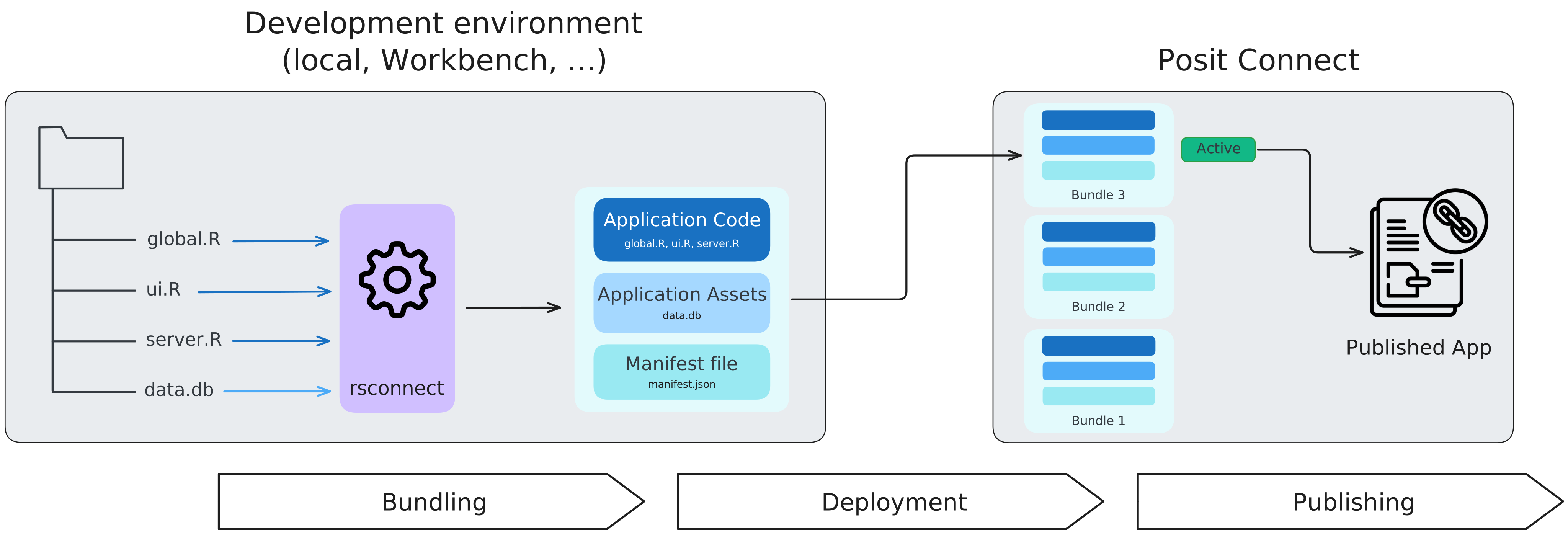
Bundles are created automatically and represent a snapshot of your content and its dependencies. Each deployment creates a new bundle, and previous bundles are retained in Connect, making it easy to rollback if needed.
On your server, bundle retention is controlled by the Applications.BundleRetentionLimit configuration setting. By default, it is set to 0, which means that all bundles are retained.
Manifest Files and Dependencies
The manifest file is crucial for successful deployment. It contains:
- Runtime environment specifications
- Dependency requirements
- Content metadata
Depending on the publication method used, the manifest file is created automatically during deployment, or users create it with the Connect CLI tool (the rsconnect-python Python package) or the {rsconnect} R package. The manifest file contains detailed information, including the runtime environment specifications. When using push button publishing (with the Positron extension for instance), Python projects also need their requirements listed in a requirements.txt file.
Code Promotion Strategies
Implementing a code promotion strategy reduces the risk of deploying broken content to production. A promotion strategy is a way to test content before putting it in production. A typical workflow includes:
- Development/Testing: Active development with frequent changes
- Staging: Less frequent updates for broader testing
- Production: Stable version for end users
Promotion Patterns by Publishing Method
Push-button publishing:
- Create separate deployments with descriptive prefixes (e.g., “test-app”, “prod-app”)
- Deploy to testing environment during development
- Deploy to production when ready for stakeholders
Git-backed publishing:
- Create separate deployments connected to different branches of you Git repository (e.g., use
developbranch for testing, andmainbranch for production) - Automatic polling updates each environment independently
- Merge workflow controls promotion timing
Programmatic publishing:
- Leverage branching strategies with CI/CD triggers
- Use GitHub releases or similar tagging to trigger production deployments
- Implement automated testing gates before publishing to production.
For system administrators, the terms “testing”, “staging”, and “production” typically apply to complete servers configurations. In the examples above, they were used to describe different versions of a deployment on the same server.
If you manage multiple Connect installations, you can combine both approaches: the different versions of the content could be deployed on different servers (using any of the methods above) to match their development stages. Multi-server approaches provide better isolation but require careful environment matching to avoid deployment inconsistencies.
Deployment Logging and Monitoring
As an administrator, you’ll need to access deployment logs to troubleshoot issues effectively.
Log Access Methods
Web interface:
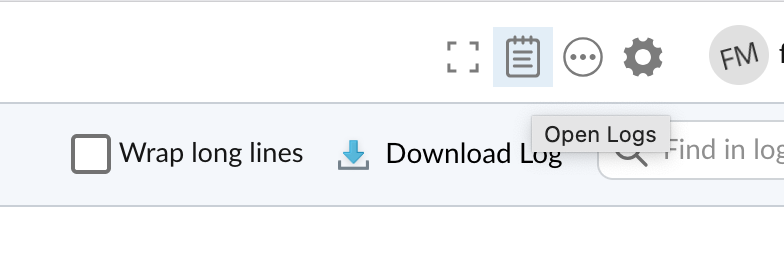
- Click the notebook icon at the top of the content page
- View logs for each bundle
- Download logs for offline analysis
Connect Web API:
- Get logs for a specific deployment job
- Download logs programmatically
Server-level logs:
- Location:
/var/log/rstudio/rstudio-connect/rstudio-connect.log - contain deployment information and system events
Only dynamic content (apps, reports) generates deployment logs. Static content deployments will not produce logs.
Environment Management
R and Python versions
You want to have multiple versions of R and Python installed on Connect. Providing multiple versions ensures that content published with specific package dependencies continues to run and remains accessible.
For Python, the path of the executables need to be specified in your configuration file.
For R, you can use several settings to control how Connect discovers the executables. However, as we saw, in lab 1, we recommend to also manually specify the paths for the R executables.
R and Python versions are specified in the form MAJOR.MINOR.PATCH. Connect has 2 ways of determining how to match Python versions (controlled with the Python.VersionMatching setting), and 3 ways for R (using the R.VersionMatching):
exact(R and Python): the exact version number needs to be available to Connect.major-minor(R and Python): there needs to be a version with the sameMAJOR.MINORon the Connect server as required by the content.nearest(R only): is the most flexible, and ensures that content gets published in most cases, by choosing the nearest version
To reduce inconsistencies or failed deployments, we recommend to make sure that the versions used by the content developers are available on the Connect server.
If the version matching strategy you chose does not allow Connect to identify a suitable version, the content will fail to deploy.
If you plan to deprecate an older version of R or Python available on Connect, you should work with your content developers so they have a chance to test their content with the newer versions, and redeploy their content with an updated manifest, so their content will continue to run with the newer versions.
When new versions of R or Python are installed on Connect, content that use them will need to be rebuilt and their dependencies will need to be reinstalled. When a user access the content for the first time, this process is done automatically, but it can take a long time. As an admin, you can avoid these delays by triggering the rebuilding using the rsconnect-python CLI.
R Packages
With R, packages are installed against a specific version of R. For instance, even if you already have version 1.1.4 of the {dplyr} package installed for R 4.4.3, once you install R 4.5.0, Connect will reinstall {dplyr}.
R packages are hosted in repositories. The most popular repository is CRAN (the Comprehensive R Archive Network) but there are others including the Posit Public Package Manager or your own hosted Posit Package Manager. Repositories might have different collections of packages, or use slightly different parameters when compiling the package. To ensure reproducibility, the manifest file also includes the repository from which the package originates, and Connect attempts to get the package from the same repository.
If the content developer relies on packages hosted in private/corporate repositories, these repositories also need to be available in Connect’s configuration so the content can be deployed successfully. The Admin Guide has a section explaining how to configure Connect to use private packages.
As seen in lab 5, you can configure Connect to complement or override the repositories requested by the content. By default, Connect will use the repositories defined in the publisher’s environment to install R packages. As an admin, you can add repositories to Connect’s configuration file using the RPackageRepository. The setting R.PackageRepositoryResolution controls which repository takes precedence. With the default value (lax), the repositories from the publishers computer will be used. By setting it to strict only configured RPackageRepository entries are used to build the runtime environment on Connect. Content that uses packages that are not available in the listed repositories will fail to deploy.
Python Packages
Connect creates a virtual environment and installs the Python packages required by the content when it is deployed. If there is a requirements.txt file in the project directory, it is used to determine the packages to install. If there is no requirements.txt file, Connect uses pip freeze to capture the current environment’s packages.
Once the packages are identified, Connect uses venv to create virtual environments and uv or pip to install the required packages, as well as the packages Connect uses to deploy and render the content.
Recent versions of Connect use uv pip to install packages as fast possible while continuing to support using a requirements.txt file to list dependencies. However, uv pip is not a drop if replacement for pip, and if you want to use pip to install packages, you can set the Python.AllowUv configuration setting to false.
The complete list of dependencies associated with each deployment can be inspected in the web interface, or requested from the Connect API.
Python Environment Caching
Connect maintains a cache of Python environments to enable faster deployments. New environments are created as needed, based on the list of package dependencies received in the bundle and the Python version in use. Subsequent deployments that have the same list of dependencies will reuse previously-built environments. If any dependencies are different, a new environment will be created. This enables published content to make use of different versions of dependent packages without conflict.
Connect deletes Python Environments that are no longer used. By default, this clean up happens every 24 hours but can be controlled with the setting Application.PythonEnvironmentReapFrequency.
Python Environment Management
By default, Posit Connect is responsible for managing the Python environment that is required by the bundle at runtime. However, administrators, and content owners can disable environment management, and rely on system-wide installations of Python packages. The administrator is then responsible for ensuring that the required packages are installed on the system.
Package Repository Configuration
If you have a package repository (for example your own hosted Posit Package Manager) for your own Python packages, have a PyPI mirror inside your firewall, or use Posit Public Package Manager for PyPI, you can configure Connect to use that package repository when installing packages. The configuration settings will depend on the tool you use to manage your environments.
Edit the global configuration file (for uv, at /etc/uv/uv.toml; for pip, at /etc/pip.conf), or under the user account specified in the Application.RunAsUser setting, (by default rstudio-connect, so for uv at /home/rstudio-connect/.config/uv/uv.toml, and for pip at /home/rstudio-connect/.config/pip/pip.conf).
Runtime cache
Connect maintains runtime caches for R packages and Python environments. When a content deploys for the first time, its dependencies are cached. Future content deploys will be able to re-use these dependencies without having to reinstall them, speeding up their deployments. Because R packages and Python libraries often link to system components, these caches depend on the versions of R or Python installed on your system, the version of the operating system, the version of the system libraries your packages depend on, and the versions of the compilers and their build chains.
While it is not a frequent operation, some admin tasks might lead to having to delete the cache so that deployments do not use cached packages that do not match the characteristics of the system. Such situations would cause deployment failures.
Clearing runtime caches can be done using the rsconnect CLI, as described in the Admin Guide. Once the runtime caches have been cleared, rsconnect can also be used to rebuild the content, in turn, contributing to rebuilding the cache.
Lab Exercise
For this lab, you are going to use the Git-backed publishing method to deploy a Quarto document on your server. In the process, you are going to troubleshoot some issues that might arise. Specifically, for this lab, you will: install a required version of R, change the quarto version matching strategy, and install a system dependency required by an R package.
- Log in to the Connect server using the
ashley/ashleyuser name and password combination. - In the “Content” tab, click on the “Publish” button, and select “Import From Git”
- In the dialog box, enter the following Git repository URL:
https://github.com/fmichonneau/storm-map - Select the ‘main’ branch, click “Next”, and choose a title for this deployment (for instance “Storm Map”).
- Click “Publish” to start the deployment.
- After a few seconds, you should see an error message that indicates that you are missing the R and Quarto versions required for this content.
- At the command line, install the version of R required by the content (4.4.0).
- Edit Connect’s configuration file to add this version of R, and change the Quarto version matching setting to use
nearestmatching. - Restart Connect.
- Go back to the Connect web interface, and in the “Content” tab, type ‘not:published’ in the search box to see your “Storm Map” deployment.
- Click on the name of the deployment, and click on “Bundles” at the top of the page.
- Click on date/time of the bundle, and click on “Activate” to trigger the redeployment of the content. This time, the deployment should start as the required version of R is now available, and the Quarto version matching is more flexible.
- After about 2 minutes, you should see another error message indicating that an R package cannot be installed due to a missing system dependency. The package that cannot be installed is called
{units}. It depends on thelibudunits2-devsystem package. - At the command line, install the
libudunits2-devsystem package. - Go back to the Connect web interface, and in the “Content” tab, type
not:publishedin the search box to see your “Storm Map” deployment. - Click on the name of the deployment, and click on “Bundles” at the top of the page.
- Click on date/time of the bundle, and click on “Activate” to trigger the redeployment of the content. You will notice that the R packages that were already installed during the previous deployment are cached, and do not need to be reinstalled.
- After about 2 minutes, the deployment should complete successfully, and you should be able to see the generated output.
Check Your Understanding
Which content publishing method would be most appropriate for a team using Git version control with complex CI/CD workflows?
You are managing a Connect server and notice that content requiring Python 3.11.8 is failing to deploy. Your server has Python 3.11.10 installed and the
Python.VersionMatchingsetting is configured toexact. What are two possible solutions to resolve this deployment issue?A content developer approaches you saying their R content deployment is taking an unusually long time. You recently upgrade to a new version of R on the server. What is likely causing this delay, and how could you as an administrator proactively prevent such delays in the future?
For teams using Git with complex CI/CD workflows, programmatic publishing via API (using the CLI, or the
{rsconnect}R package) would be most appropriate as it provides the flexibility needed for automated testing, data preprocessing, and integration with existing CI/CD systems.Two possible solutions:
- Install Python 3.11.8 on the Connect server to match the exact version requirement
- Change the
Python.VersionMatchingsetting fromexacttomajor-minor, which would allow the content to use Python 3.11.10 since it matches the major-minor version (3.11) required by the content - Consult with the author of the content to make sure that the answer you choose aligns with the intended environment for the content.
The delay is likely caused by the need to rebuild content and reinstall dependencies for the new R version, which happens automatically when content is first accessed after installing a new R version. To proactively prevent such delays, you can use the
rsconnectCLI to trigger the rebuilding process before users access the content, ensuring dependencies are installed and cached ahead of time. Making sure that you enabled a repository to R packages that provides binary packages (like Posit Public Package Manager for R) can also help reduce installation times.