Database Connections
This reference guide provides comprehensive technical information about connecting Posit Connect content to databases. It is designed as supporting documentation for the Data Access Management lesson and serves as a detailed technical reference for system administrators who need to configure and troubleshoot database connectivity.
This document is reference material rather than a standalone lesson. For learning objectives, hands-on activities, and knowledge checks, please refer to the main Data Access Management lesson.
Overview
Databases are one of the most common external data sources for deployed content. This guide covers:
- Understanding database connectivity architecture
- Installing and configuring Posit Professional Drivers
- Setting up DSNs (Data Source Names)
- Connection examples in R and Python
- Troubleshooting database connections
- Upgrading Posit Professional Drivers
Understanding Database Connectivity
Each database system uses different approaches for data storage, represents data internally using their own format, and developed their own API to work with data. To facilitate data access, database developers have created standards that abstract the specificities of each system. These standards allow developers to rely on the same API to interact with all the databases supporting these standards.
The Modular Nature of Database Connections
Database connectivity involves three key components that work together to enable communication between your programming language and the database:
Front-end interface: Provides standardized language-level functions that remain consistent regardless of the database used.
Back-end interface: Converts the standardized front-end calls into database-specific commands.
Database drivers: Low-level software components that enable direct communication with specific database systems.
These components create a modular system where parts can be mixed and matched for different connection methods.
Language-specific Database Interfaces (Front-end Interfaces)
Language-specific standards provide a common front-end interface for connecting to multiple databases:
- For R, the
DBIpackage provides developers functions that are independent of the end-user database system. In other words,DBIprovides a common front-end for database connections. The user has only to choose the backend that is compatible with the database they use. TheDBIecosystem provides database-specific backends that either interact directly with their bundled drivers, such asRPostgres,RMariaDB,bigrquery, orRSQLite, or that rely on database standards such as theodbcR package. - For Python,
PEP-249is a proposed standard for making database connectors. This standard is used by packages such aspyodbcfor making ODBC connections to databases.
Back-end Interfaces
Back-end interfaces translate the standardized front-end calls into database-specific commands. Examples include:
- R: Database-specific packages like
RPostgres,RMariaDB, or theodbcpackage - Python:
pyodbcfor ODBC connections
Database Drivers
Database drivers are low-level software components that enable direct communication with specific database systems. There are three main types of database drivers:
- ODBC-compatible drivers: ODBC is a cross-language standard protocol, supported by most database systems with implementation in many programming languages. We recommend these drivers due to their cross-language support and wide adoption, and we provide professionally-supported ODBC drivers for Posit customers.
- JDBC (Java Database Connectivity), is also a popular protocol and similar to the ODBC, but built around the Java ecosystem. We do not recommend using it due to challenges in managing Java installations.
- Native drivers: Bundled with some R packages (e.g.,
RPostgresincludes a C++ driver for PostgreSQL).
Example: PostgreSQL Connection Options
To illustrate how these three components interact, let’s explore some of the available options to connect to a PostgreSQL database from R or Python (see Figure 1):
In R,
DBIprovides the standardized front-end. You can use eitherRPostgres(which bundles its own C++ driver) or theodbcpackage (which requires an external ODBC driver installed on the Connect server, such as Posit Professional Drivers).In Python,
pyodbcprovides both a standard language front-end, and implements the ODBC protocol (requiring an external driver).
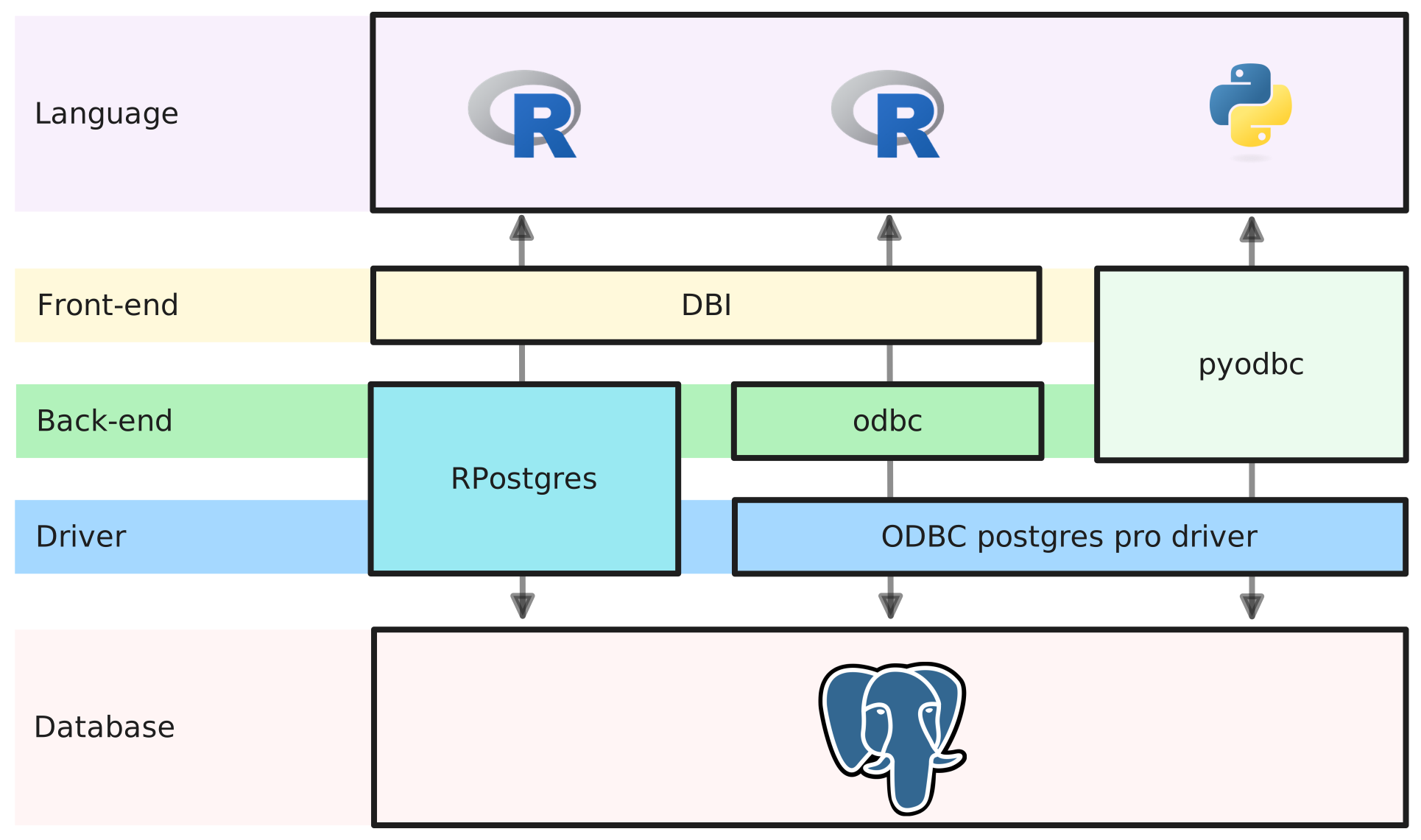
Posit Professional Drivers provide ODBC drivers that work with both R and Python, eliminating the need for separate drivers for each language.
Posit Professional Drivers
Now that you understand the database connectivity architecture, let’s examine Posit Professional Drivers—the recommended ODBC drivers for Posit Connect installations. These professionally-supported drivers provide cross-language compatibility and enterprise-grade reliability.
Supported Databases
Posit provides professionally-supported ODBC drivers for:
- PostgreSQL
- SQL Server
- Oracle
- MySQL/MariaDB
- Amazon Redshift
- Snowflake
- Databricks
- Google BigQuery
- And more
For the complete list and platform support, see the Pro Drivers documentation.
Installation
Detailed installation instructions for servers are available in the Pro Drivers Installation Guide.
Configuration Files
Driver Definitions (/etc/odbcinst.ini)
This file configures system-wide driver locations and attributes. Each database driver gets its own section.
Example PostgreSQL driver configuration:
[PostgreSQL]
Driver = /opt/rstudio-drivers/postgresql/bin/lib/libpostgresqlodbc_sb64.so
RStudioVersion = 2025.07.0
Version = 1.5.20.1026
Installer = RStudio Pro Drivers
Check your current configuration:
cat /etc/odbcinst.iniFind configuration file location:
odbcinst -jDSN Definitions (odbc.ini)
A Data Source Name (DSN) is a symbolic name that combines all parameters required to make a database connection. Benefits include:
- Simplified code: Developers reference a single name instead of multiple connection parameters
- Centralized management: Admins can update connection details without code changes
- Credential security: Database credentials can be stored in the DSN, keeping them out of code
You can have DSN definitions that are available to all users on the system, typically stored in /etc/odbc.ini. It is also possible to define per-user DSNs in their home directories (~/.odbc.ini).
User-specific DSNs can be useful for:
- Service account users with specific credentials
- Testing connections with different credentials
- Isolating DSNs between different service accounts
Example DSN Configuration with Credentials:
This example shows credentials stored in the DSN, which is common when using dedicated database accounts for Connect content. Note that UID and PWD here refer to database authentication credentials, not Linux user accounts.
[MyPostgresDB]
Driver = PostgreSQL
Server = database.example.com
Port = 5432
Database = my_database
UID = database_service_account
PWD = secure_password
Credentials can be omitted (the DSN doesn’t include UID and PWD). In this case, developers must provide them in their code. They can use environment variables or other secure methods to provide credentials in their scripts.
DSNs are especially useful when:
- Multiple applications connect to the same database
- You want centralized connection management
- You need to abstract connection details from developers
- You are using service account credentials
Connection Examples
With the drivers installed and DSNs configured, you’re ready to connect to databases from R and Python code. The following examples demonstrate different connection methods for both languages. These examples are what your content developers will use in their deployed applications.
R Examples
Using DBI + RPostgres (Native Driver)
DSNs are an ODBC concept and are not used with native drivers like RPostgres. When using native drivers, you must provide connection parameters directly in your code. Additionally, note that the argument names used with RPostgres differ from ODBC parameter names (e.g., user vs UID, dbname vs Database).
library(DBI)
library(RPostgres)

# Connect directly using RPostgres
con <- dbConnect(
  Postgres(),
  host = "database.server.com",
  port = 5432,
  dbname = "my_database",
  user = Sys.getenv("username"),
  password = Sys.getenv("password")
)

# Query the database
data <- dbGetQuery(con, "SELECT * FROM my_table LIMIT 10")

# Close the connection
dbDisconnect(con)
Using DBI + odbc with DSN
library(DBI)
library(odbc)

# Connect using DSN (with credentials in DSN)
con <- dbConnect(odbc::odbc(), dsn = "MyPostgresDB")

# Connect using DSN (providing credentials as environment variables)
con <- dbConnect(
  odbc::odbc(),
  dsn = "MyPostgresDB",
  uid = Sys.getenv("username"),
  pwd = Sys.getenv("password")
)

# Query the database
data <- dbGetQuery(con, "SELECT * FROM my_table LIMIT 10")

# Close the connection
dbDisconnect(con)
Using DBI + odbc with Connection String (without DSN)
Note that when using connection strings without a DSN, you must use ODBC parameter names, including the driver name, as that’s what the ODBC driver expects.
library(DBI)
library(odbc)

# Connect using full connection string
con <- dbConnect(
  odbc::odbc(),
  Driver = "PostgreSQL",
  Server = "database.server.com",
  Port = 5432,
  Database = "my_database",
  UID = Sys.getenv("username"),
  PWD = Sys.getenv("password")
)

# Query the database
data <- dbGetQuery(con, "SELECT * FROM my_table LIMIT 10")

# Close the connection
dbDisconnect(con)
Python Examples
Using pyodbc with DSN
import pyodbc
import pandas as pd

# Connect using DSN (with credentials in DSN)
conn = pyodbc.connect("DSN=MyPostgresDB")

# Connect using DSN (providing credentials)
conn = pyodbc.connect(
    "DSN=MyPostgresDB;UID=username;PWD=password"
)

# Query the database
cursor = conn.cursor()
cursor.execute("SELECT * FROM my_table LIMIT 10")
data = pd.DataFrame([tuple(row) for row in cursor.fetchall()])

# Close the connection
cursor.close()
conn.close()
Using pyodbc with Connection String
import pyodbc
import pandas as pd

# Connect using full connection string
conn = pyodbc.connect(
    "Driver={PostgreSQL};"
    "Server=database.server.com;"
    "Port=5432;"
    "Database=my_database;"
    "UID=username;"
    "PWD=password;"
)

# Query the database
cursor = conn.cursor()
cursor.execute("SELECT * FROM my_table LIMIT 10")
data = pd.DataFrame([tuple(row) for row in cursor.fetchall()])

# Close the connection
cursor.close()
conn.close()
Troubleshooting Database Connections
Testing on Connect Server
The best way to troubleshoot database connections is to test directly on the Connect server.
The first step is to check if your DSNs are correctly defined and accessible. The isql command-line tool can be used for this purpose.
For instance, if you have a DSN named MyPostgresDB, you can test it as follows:
isql -v MyPostgresDBIf the connection is successful, you should see a SQL prompt. You can then run a simple query to check that you can access data as expected.
If you encounter errors, the output will provide clues about what might be wrong (e.g., driver not found, authentication failed, etc.).
You can also check the connection from R and Python directly on the server. In this case, you need to launch one of the available R or Python versions installed on the Connect server (ideally the same one as the one used in the content where you observe the issue).
Find available R versions:
ls -1d /opt/R/*Test R connection:
# Example using R 4.2.0 - update the path with your actual R version
sudo /opt/R/4.2.0/bin/R
Then in R:
library(DBI)
library(odbc)
con <- dbConnect(odbc::odbc(), dsn = "MyPostgresDB")
dbGetQuery(con, "SELECT 1 as test")
Find available Python versions:
ls -1d /opt/python/*Test Python connection:
# Example using Python 3.10.8 - update the path with your actual Python version
sudo /opt/python/3.10.8/bin/python3
Then in Python:
import pyodbc
conn = pyodbc.connect("DSN=MyPostgresDB")
cursor = conn.cursor()
cursor.execute("SELECT 1 as test")
print(cursor.fetchall())
Common Issues
“Driver not found”
Symptoms:
- Error message:
Can't open lib 'PostgreSQL' - Error message:
Driver not found
Solutions:
Check driver is installed:
ls -l /opt/rstudio-drivers/Verify
/etc/odbcinst.iniconfiguration:cat /etc/odbcinst.iniEnsure driver path in
odbcinst.inimatches actual file locationCheck driver file permissions:
ls -l /opt/rstudio-drivers/postgresql/bin/lib/
“Authentication failed”
Symptoms:
- Error message:
FATAL: password authentication failed - Error message:
Access denied for user
Solutions:
- Verify credentials are correct
- Check database user has necessary permissions
- Confirm database allows connections from Connect server IP
- Review database authentication method (md5, scram-sha-256, etc.)
- Check if service account password has expired
“Could not connect to server”
Symptoms:
- Error message:
could not connect to server - Error message:
Connection refused - Error message:
Timeout
Solutions:
Verify database server is running
Check network connectivity from Connect server:
telnet database.server.com 5432Confirm firewall rules allow connection
Verify correct hostname/IP and port
Check database is listening on correct interface
“DSN not found”
Symptoms:
- Error message:
Data source name not found
Solutions:
- Check DSN is defined in
/etc/odbc.inior~/.odbc.ini - Verify DSN name matches exactly (case-sensitive)
- Confirm file permissions allow reading the odbc.ini file
- Check which user is running the content
Detailed Troubleshooting
For comprehensive Pro Drivers troubleshooting, see the Troubleshooting Guide.
Upgrading Posit Professional Drivers
To upgrade Posit Professional Drivers to the latest version, backup your configuration files first (/etc/odbcinst.ini and /etc/odbc.ini), then follow the installation instructions for the new version. After installation, verify that your DSNs are still correctly defined and test connections as described in the troubleshooting section.