What is Posit Workbench?
By the end of this lesson, you will be able to:
- Describe the core Posit Workbench architecture, including the roles of
rserver, the Session Launcher, and IDE sessions. - Compare common deployment patterns (single server, load-balanced cluster, Kubernetes, and Slurm/HPC).
- Explain how Workbench brokers sessions and jobs across local and external compute backends.
- Walk through the Workbench session lifecycle from launch to suspension or termination.
- Distinguish how idle detection and timeout behavior differ across RStudio Pro, VS Code/Positron Pro, and JupyterLab.
1 Introduction
Workbench provides a centralized, secure environment for data scientists to develop and execute code. It supports the most popular IDEs including Positron, RStudio, VS Code, and Jupyter. In addition to interactive development, Workbench can also be used to execute and manage long-running jobs. By providing standard environments for R or Python, Workbench reduces onboarding and facilitates collaboration.
Workbench is a server-based development platform with browser-based access. Unlike desktop applications, Workbench separates the computing environment from the user’s local machine. Organizations can centralize compute resources, maintain consistent development environments, and scale capacity as needed. Each user can run multiple concurrent sessions simultaneously, switching between different IDEs, R versions, and Python versions as their projects require. Workbench is browser-based, so users can get started quickly.
2 Understanding Posit Workbench Architecture
To understand how Workbench works, it is helpful to visualize the components that make up its architecture (Figure 1). At a high level, Workbench consists of a server component that manages user authentication, session launching, and resource allocation. Users connect to the Workbench server through their web browser, where they can start and manage multiple IDE sessions as well as submit non-interactive jobs.
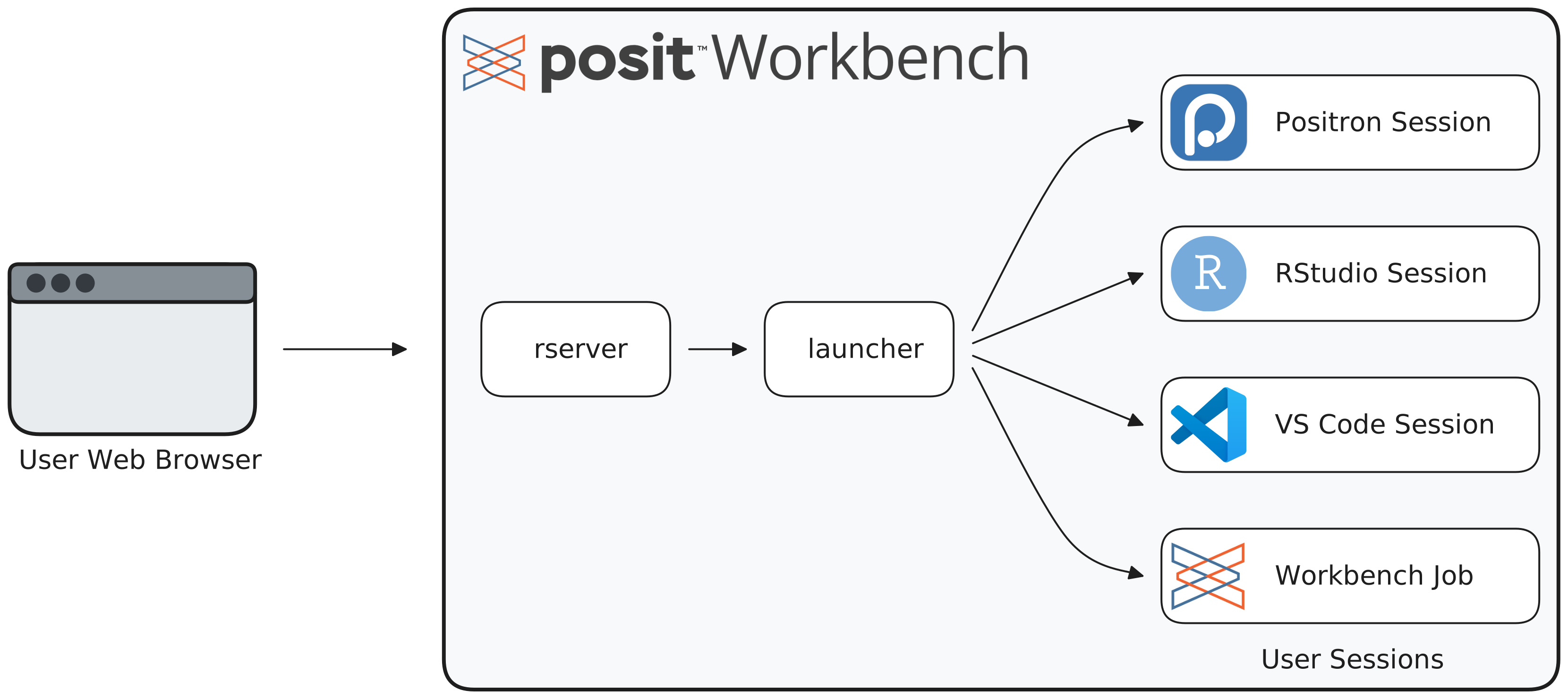
When a user reaches the Workbench web interface, the rserver process handles authentication and session management. It provides the launcher with the information needed to start a new session. The Session Launcher component then initiates the requested IDE session (Positron Pro, RStudio IDE, VS Code, or JupyterLab) in an isolated environment and calls back to rserver with the session endpoint. Each session runs independently, allowing users to work on different projects simultaneously without interference. rserver proxies all user traffic to the appropriate session.
Workbench supports deployment architectures that scale from a few users to thousands, so organizations can start simple and add complexity as needed:
- At its most basic, Workbench runs on a single Linux server, where the Workbench process directly manages user sessions on the same machine.
- When teams need more compute capacity or redundancy, Workbench can be deployed as a load-balanced cluster across two or more nodes, with a shared Network File System (NFS) storage backend and a PostgreSQL database to synchronize state between nodes.
- For organizations with variable or large workloads, Workbench integrates with external compute backends through a plugin-based component that delegates session and job execution, the Job Launcher. The two most common backends are Kubernetes, where sessions run as isolated pods managed via Helm, and Slurm, where Workbench submits jobs to an HPC cluster’s head node for scheduling across compute nodes.
Across all these topologies, the role of Workbench remains consistent: it handles authentication, the web interface, and session brokering. What changes is where the actual compute happens. The guiding principle is to choose the simplest architecture that meets current needs, as each step up in flexibility comes with additional operational complexity.
2.1 Single-Server Architecture
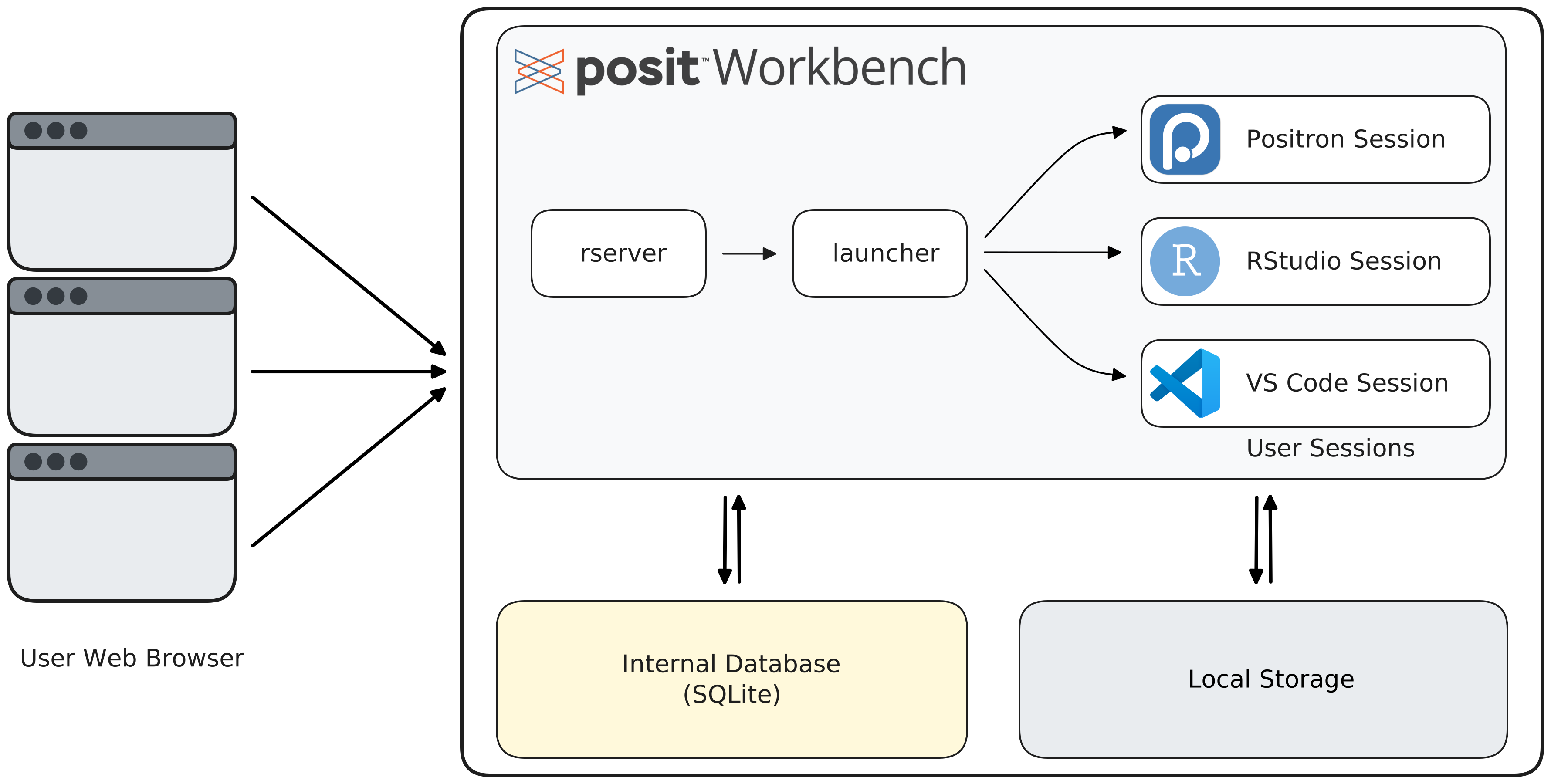
A single server deployment (Figure 2) represents the simplest Workbench architecture, suitable for small teams of approximately 10 users. In this configuration, Workbench runs on one Linux server with local storage and a SQLite database.
2.2 Load-Balanced Architecture
When teams grow beyond a single server’s capacity or require high availability, Workbench supports load balanced deployments with two or more servers working together. All nodes are available to support user sessions (active-active cluster). This architecture requires an Enhanced or Advanced license, and users’ home directories must reside on a shared file system (typically NFS), and Workbench metadata is stored in an external PostgreSQL database. The load balancer distributes new sessions across available nodes, maintaining session affinity so users reconnect to their existing sessions.
An R or Python session is a process running in RAM on a node. Session affinity ensures that once a session lands on a node, all traffic for that session stays on it, so users are always routed back to the node where their live process runs. When using an external balancer, the most reliable and recommended way to ensure session affinity is to use cookie-based sticky sessions.
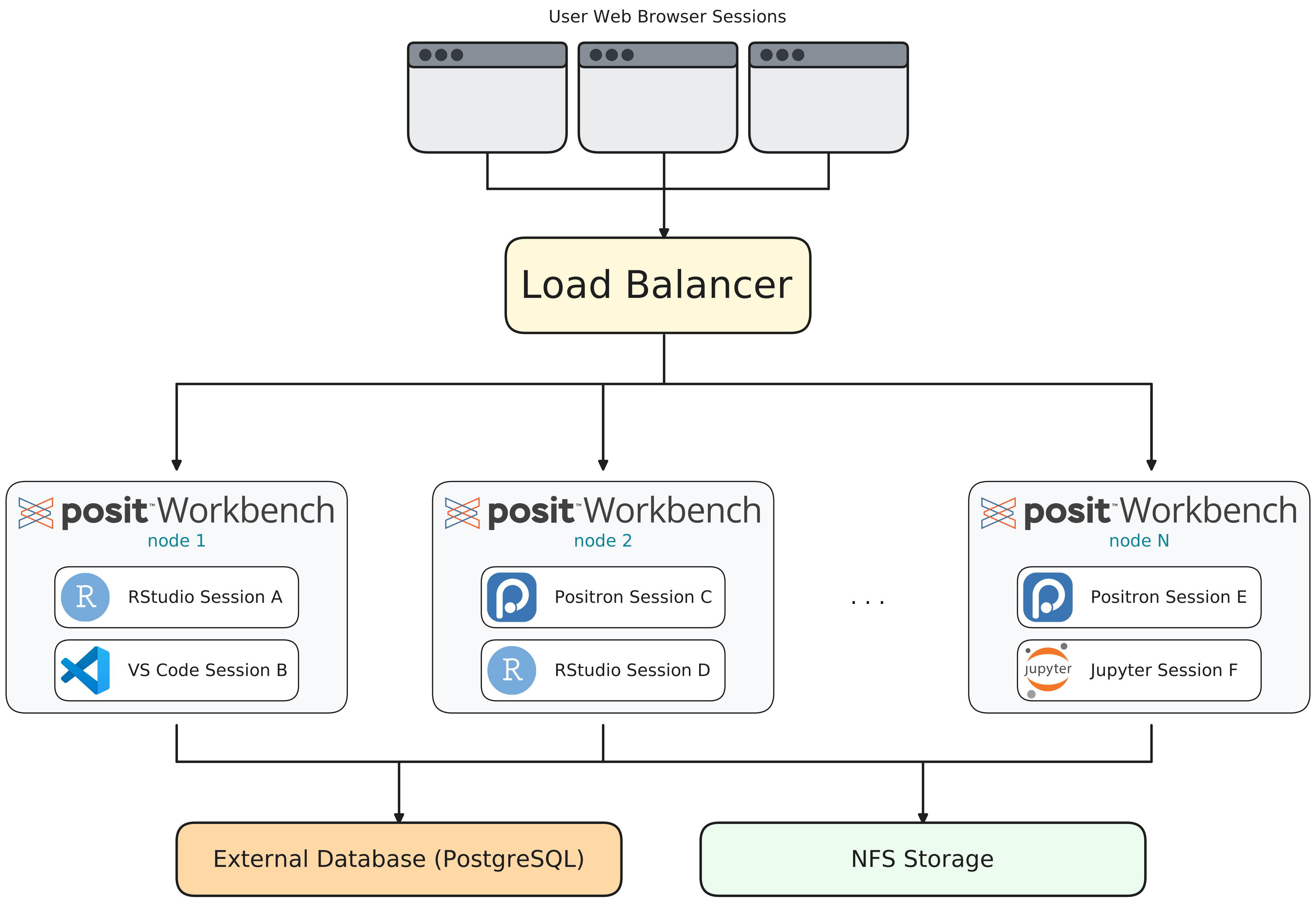
There are two ways to configure Workbench in a load-balanced setting: using single-node routing or using an external load balancer. However, regardless of the routing strategy chosen, Workbench always handles its own internal load balancing.
Figure 3 illustrates the scenario of an external load balancer, and is usually the recommended setting. In single-node routing, one of the nodes in the cluster is designated as the entry point, and users connect to it directly. This node receives all incoming traffic and internally routes requests to whichever node holds the relevant session (including itself). It means that if this node goes down, Workbench becomes inaccessible and the cluster is effectively down.
When using an external load balancer, all nodes are peers. The load balancer distributes the requests to any node, but Workbench handles the internal routing from there and might assign a session to a different node. If a node goes down, the load balancer stops sending traffic to it, and the cluster remains functional.
2.3 Kubernetes Architecture
Workbench deploys into Kubernetes clusters using Helm charts, treating user sessions as ephemeral containerized workloads. This architecture (see Figure 4) fully uses Kubernetes orchestration capabilities: sessions run in isolated Pods that can use different container images. Users can select pre-configured environments with specific R and Python versions, package sets, system libraries, or GPU drivers. The Kubernetes deployment supports advanced features like resource quotas per user or group, placement constraints that direct sessions to appropriate node types, and integration with cloud provider Identity and Access Management (IAM) systems for credential management.
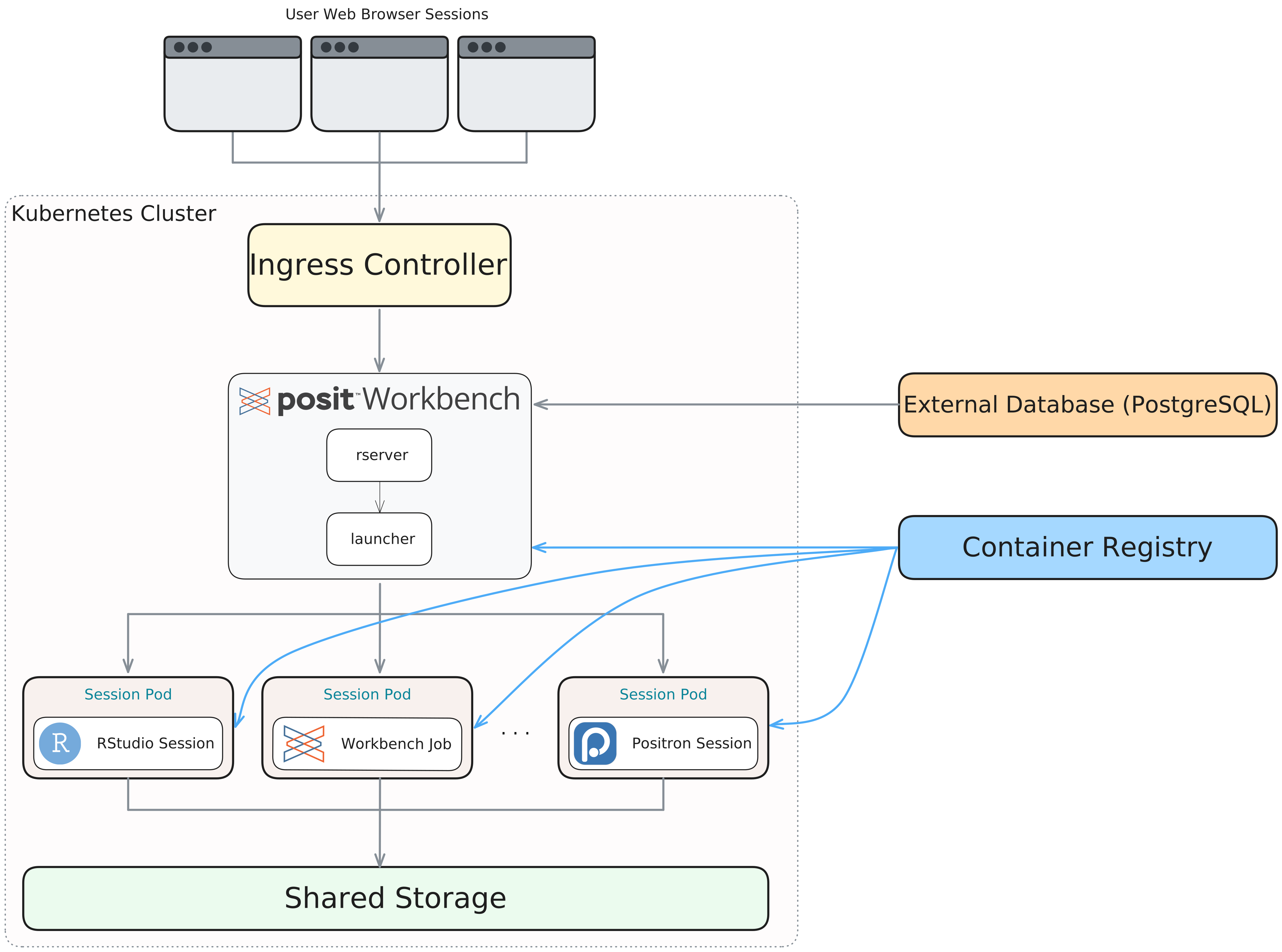
When combined with a cluster autoscaler, this architecture dynamically provisions compute capacity in response to demand, scaling from zero to thousands of concurrent sessions. Kubernetes also supports high-availability patterns, with multiple Workbench replicas, resilient storage, and database configurations that provide resilience against infrastructure failures.
2.4 HPC and Slurm Integrations
Organizations with existing high-performance computing (HPC) infrastructure can integrate Workbench with Slurm cluster schedulers, allowing data scientists to use hundreds or thousands of compute nodes for their development sessions.
In this architecture, Workbench servers act as gateway nodes that submit session requests to Slurm. Slurm then launches IDE sessions on compute nodes according to resource profiles that specify CPU, memory, GPU, and partition requirements. This approach separates the relatively light Workbench service (which handles authentication, session management, and web proxying) from the computationally intensive IDE sessions, enabling administrators to configure different hardware for different workloads. Users access the familiar Workbench interface but benefit from the sophisticated resource scheduling, GPU access, and container support (via Singularity/Apptainer) that HPC systems provide. AWS ParallelCluster deployments using this pattern have been tested with 500-5,000 concurrent sessions, demonstrating the architecture’s ability to support very large teams.
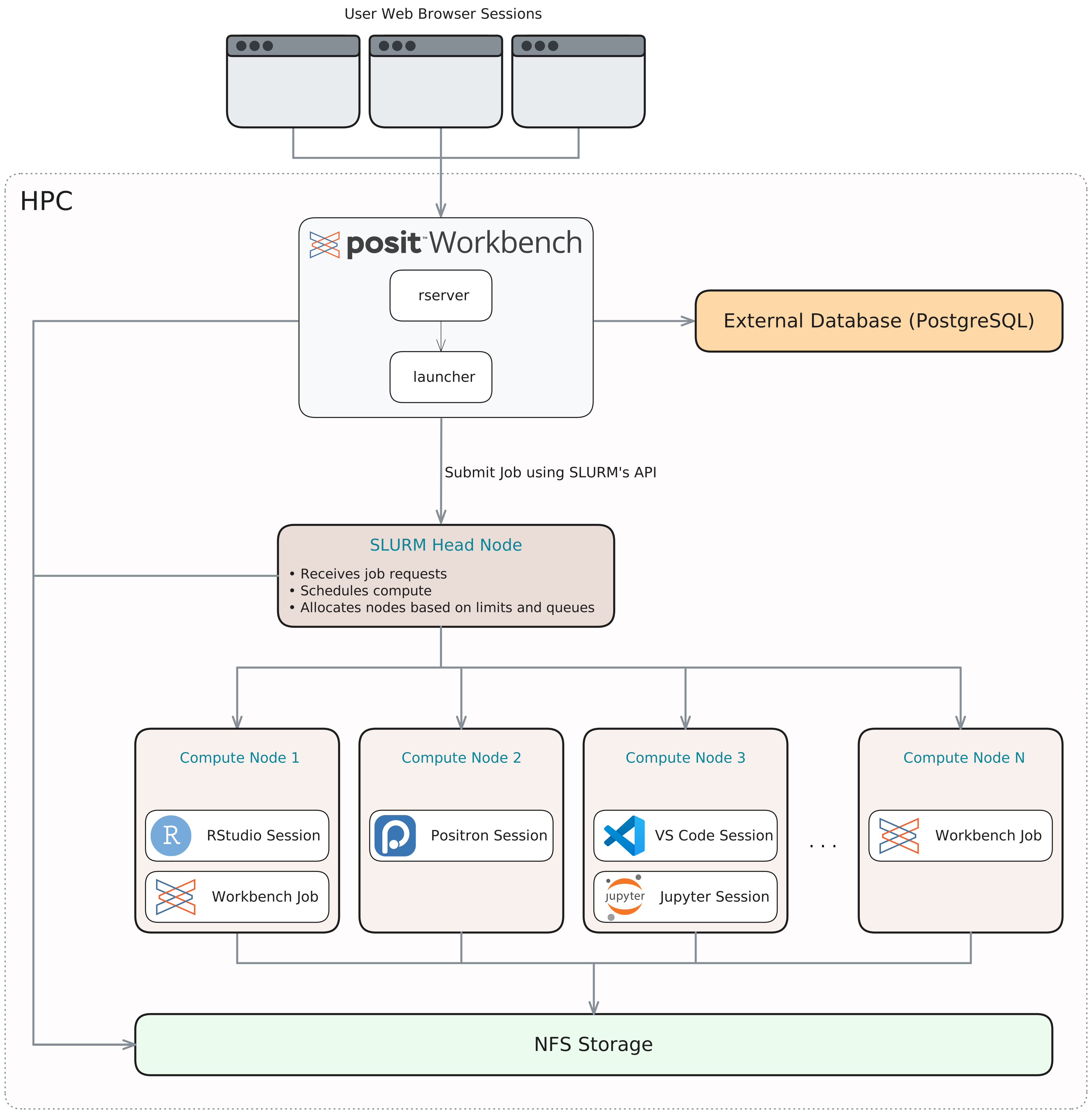
With a Slurm architecture, the session submission flow is:
- The user opens a new session in the Workbench UI and selects a resource profile (see below).
- Workbench passes the request to the Launcher process, which submits a Slurm job to the Head Node via the Slurm API.
- The Slurm Head Node schedules the job on available compute nodes.
- The session process starts on the compute nodes.
- Workbench proxies the user’s browser traffic back to that session.
When the user opens a new session, they will select a resource profile. These profiles are set by the Slurm admins and describe the CPU, RAM, GPU, etc. that a user can request. Users do not have to write Slurm directives. Workbench handles the formatting automatically, reducing errors. Workbench has no direct knowledge of Slurm. The Slurm Job Launcher Plugin translates the session requests and monitors the job state.
Users must exist on both the Workbench nodes and the Slurm nodes, with the same UIDs. This can be done, for example, by pointing to the same authentication provider.
Workbench also supports running sessions inside Apptainer containers on Slurm compute nodes. Apptainer (the open-source successor to Singularity) is the standard container runtime in HPC environments because it does not require root privileges, making it safe for shared multi-user clusters. Administrators define available container images as part of the resource profiles; when a user selects a profile, Workbench passes the image specification to the Slurm Launcher Plugin, which launches the IDE session inside the container on the allocated compute node.
3 Session Lifecycle
3.1 Session Lifecycle Overview
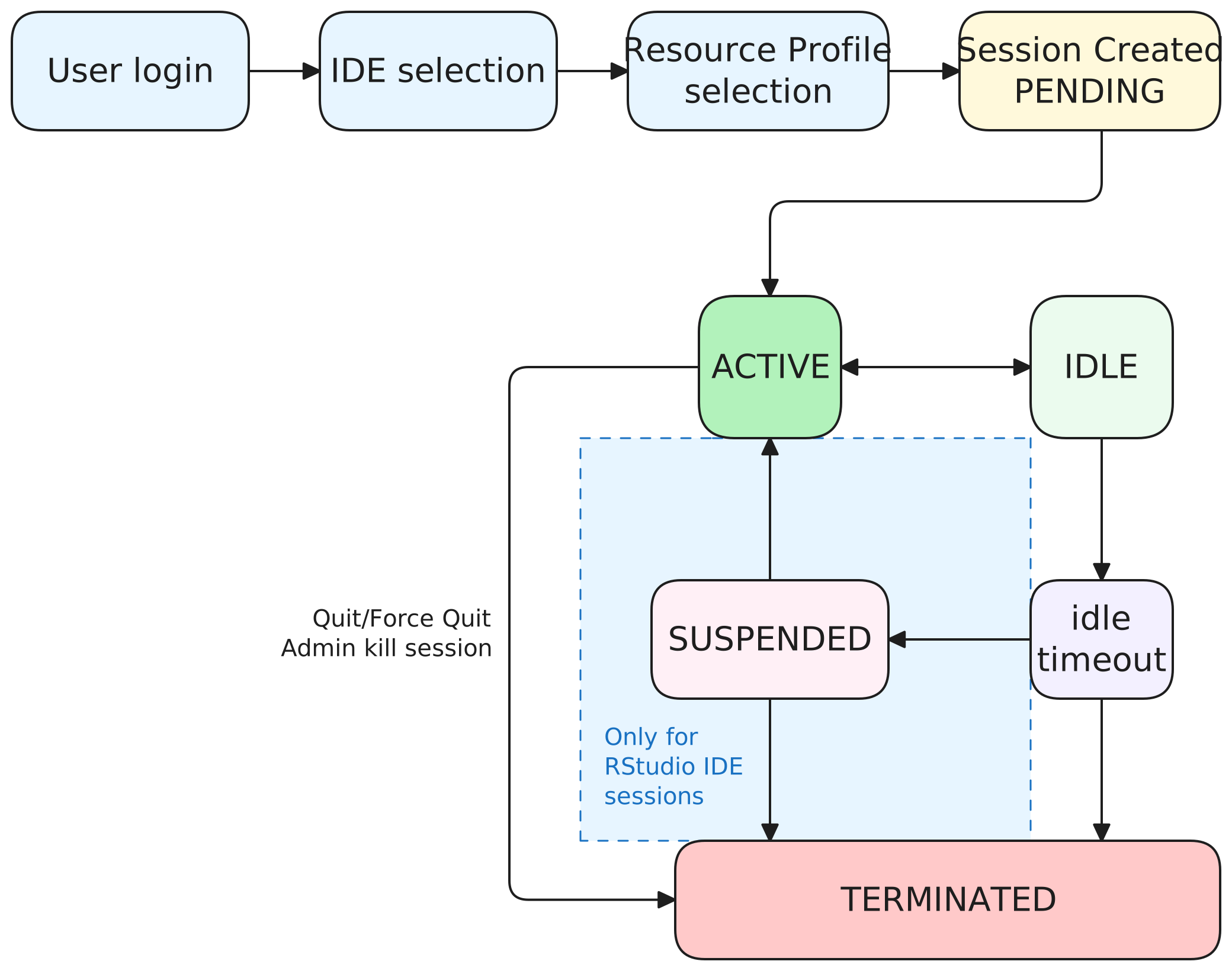
A Workbench session follows a well-defined lifecycle from authentication to termination.
After login, the user reaches the Workbench home page and starts a new session by selecting an IDE (RStudio, VS Code, JupyterLab, or Positron). When the Job Launcher is configured, the user can also select a resource profile that sets resources (CPU, memory), queue (for Slurm), and container image (for Kubernetes).
Workbench passes the request through the Job Launcher to the appropriate plugin (Local, Slurm, or Kubernetes), which spawns the session process: it briefly appears as “Pending” before becoming “Active”.
Once running, the session persists on the server even when the browser is closed, so long-running computations can continue unattended.
After a configurable idle period (two hours by default), Workbench automatically suspends (only in RStudio IDE) or kills sessions to reclaim server resources. Behavior varies by IDE, and Workbench provides controls for admins to customize it (see Section 3.2). Users can also stop their sessions at any time, which terminates the session process and frees resources immediately. Suspended sessions in RStudio IDE can be resumed later, restoring the user’s workspace and open files. In contrast, sessions in VS Code, Positron Pro, and JupyterLab do not support suspension: when they are killed, any unsaved state is lost.
3.2 Managing Session Lifecycle and Resource Consumption
Workbench gives you several configuration options to control how many concurrent active sessions a user can have, and how long sessions are allowed to run before being suspended or terminated. The most important thing to understand before configuring these is that “idle” does not mean the same thing across IDEs, and the termination behavior also differs. This has real consequences for users who leave long-running computations unattended.
For RStudio Pro sessions, idle means no R commands have been executed for the configured period. Workbench tracks this at the computation level, not the browser level. A user whose model is fitting is not considered idle. When the timeout is reached, RStudio Pro suspends the session to disk, preserving its state so Workbench can restore it transparently when the user reconnects. Control this with session-timeout-minutes (default: 120) in rsession.conf.
A second setting, session-timeout-kill-hours, adds a hard ceiling: Workbench forcefully terminates sessions that have been running too long (including active ones). Note that several conditions can block suspension even after the timeout: active database connections, R objects with external pointers, and an R prompt not in its default state (e.g., during a debug session). These are controlled by session-connections-block-suspend and session-external-pointers-block-suspend, both enabled by default.
For VS Code and Positron Pro sessions, idle is defined differently: no interaction detected by the VS Code API. This is a UI-level signal (typing, clicking, and running cells all count, but a long-running terminal command or Python script executing after the initial keystroke does not). Closing the browser tab also severs the connection between the Workbench extension and the server, making the session appear idle even if computation is still in progress. Critically, there is no suspend-and-restore mechanism for these IDEs: when the session-timeout-kill-hours threshold is reached, Workbench kills the session, and any unsaved in-memory state is gone. Make sure users have autosave and hot exit configured before enabling this timeout. It is worth noting that the Workbench extension for both Positron Pro and VS Code automatically warns users if their settings could lead to data loss.
For JupyterLab, Workbench does not implement its own idle detection at all: it delegates entirely to Jupyter’s built-in kernel-culling machinery, configured via session-cull-minutes and session-shutdown-minutes in jupyter.conf. The Workbench documentation recommends disabling kernel culling (session-cull-minutes=0) because Jupyter provides no indication that the session ended, and users might continue to work in a disconnected session.
4 Security Overview
Workbench provides layered security controls across authentication, network access, and session isolation. Authentication can be integrated with existing identity and access management systems. Login access can be scoped to specific Linux groups, and a minimum user ID threshold is available to exclude system accounts.
At the network level, Workbench supports TLS/SSL with configurable protocol restrictions, CSRF protection, and IP-based access rules. Session isolation is enforced at the OS level: each session runs as that user’s own Linux process, so file permissions are governed by the operating system. Per-user, per-session audit logging of R console activity is also available, along with Prometheus metrics for monitoring integration. The Workbench Hardening Guide documents all available security-related configuration options.
5 Next Steps
- To help you decide the right architecture and the appropriate server size for your team, see the Reference Architecture Guide.
- The Admin Guide also includes detailed information about the different reference architectures you can review.
- To learn more about session timeouts and how to configure them, you can read the relevant sections of the Admin Guide for each of the IDEs:
- Positron Pro
- RStudio Pro
- VS Code
- For Jupyter, the relevant configuration options are directly documented in the configuration overview.