Lab 1: Installation
By the end of this lab, you will be able to:
- Install and license Posit Package Manager
- Create and subscribe a CRAN and a PyPI repository
- Verify the installation from both the command line and the web interface
This lab puts into practice the concepts covered in Installation Overview. If you have not read it yet, review it first so the steps below make sense.
Install Posit Package Manager
To install Package Manager, follow the instructions in the documentation for Installing Posit Package Manager.
Posit distributes Package Manager through Linux repositories (Ubuntu, RHEL, and SLES/openSUSE), so the installation process is similar to installing any other Linux package.
For Ubuntu, the installation process is as follows:
Terminal
curl -1sLf \
  'https://dl.posit.co/public/pro/setup.deb.sh' \
  | sudo -E bash

sudo apt-get install rstudio-pm=2026.06.0
sudo apt-mark hold rstudio-pm
Note that you use apt-mark hold (or the equivalent command for your Linux distribution) to prevent the package from being automatically updated during a routine system maintenance process. This is a best practice for all Posit products, as it gives you control over when updates occur in your environment, allowing you to test newer versions of the product in a staging environment before rolling them out to production.
Activate the Package Manager License
Using the instructions listed in the documentation, activate your installation of Package Manager using the license file found in your home directory.
To activate your license, you can use the following command, substituting the path to your license file found in your home directory.
Terminal
sudo chown rstudio-pm <license-file>.lic
sudo chmod 0600 <license-file>.lic
sudo cp -a <license-file>.lic /var/lib/rstudio-pm/
sudo systemctl restart rstudio-pm
To determine the current license status, use the following command:
Terminal
sudo /opt/rstudio-pm/bin/license-manager statusAs you are using a license file, only the output under -- License file status -- is relevant to you. You should see that the license has Status: Activated, and there are some days left under Days-Left.
After restarting Package Manager, check that it is running as expected by checking the output of:
Terminal
sudo systemctl status rstudio-pm.serviceConfigure Package Manager Repositories
Package Manager installs with no repositories defined by default. Before you create anything, open the Package Manager web interface by clicking on the tab at the top. With a fresh installation, no repositories are listed: this is the empty starting state before you create and configure repositories. You will create two repositories: one for CRAN packages and one for PyPI packages.
Use the Quick Start documentation to configure a CRAN and a PyPI repository. Each one is a two-step process: first you create the repository, then you subscribe it to a source.
Start by creating the two repositories, without subscribing them yet.
Terminal
sudo rspm create repo --name=cran --description='CRAN packages'
sudo rspm create repo --name=pypi --type=python --description='PyPI packages'
Return to the web interface and refresh it (click on the circular arrow in the top right corner). The cran and pypi repositories now appear, but they are empty: creating a repository does not by itself make any packages available. Packages show up only once the repository is subscribed to a source. If you want to check that they are empty, click on “Browse all” for each repository: you should see a message that says “No sources subscribed”.
Now subscribe each repository to its source.
Terminal
sudo rspm subscribe --repo=cran --source=cran
sudo rspm subscribe --repo=pypi --source=pypi
Then run sudo rspm list to verify that they have been correctly created and configured. Your output should look something like this:
Terminal
2 repos (unlimited)

cran - CRAN packages - R
 - cran (CRAN)
pypi - Access PyPI packages - Python
 - pypi (PyPI)
No Subscriptions
 - bioconductor (Bioconductor)
 - openvsx (Open VSX)
Verify Your Work
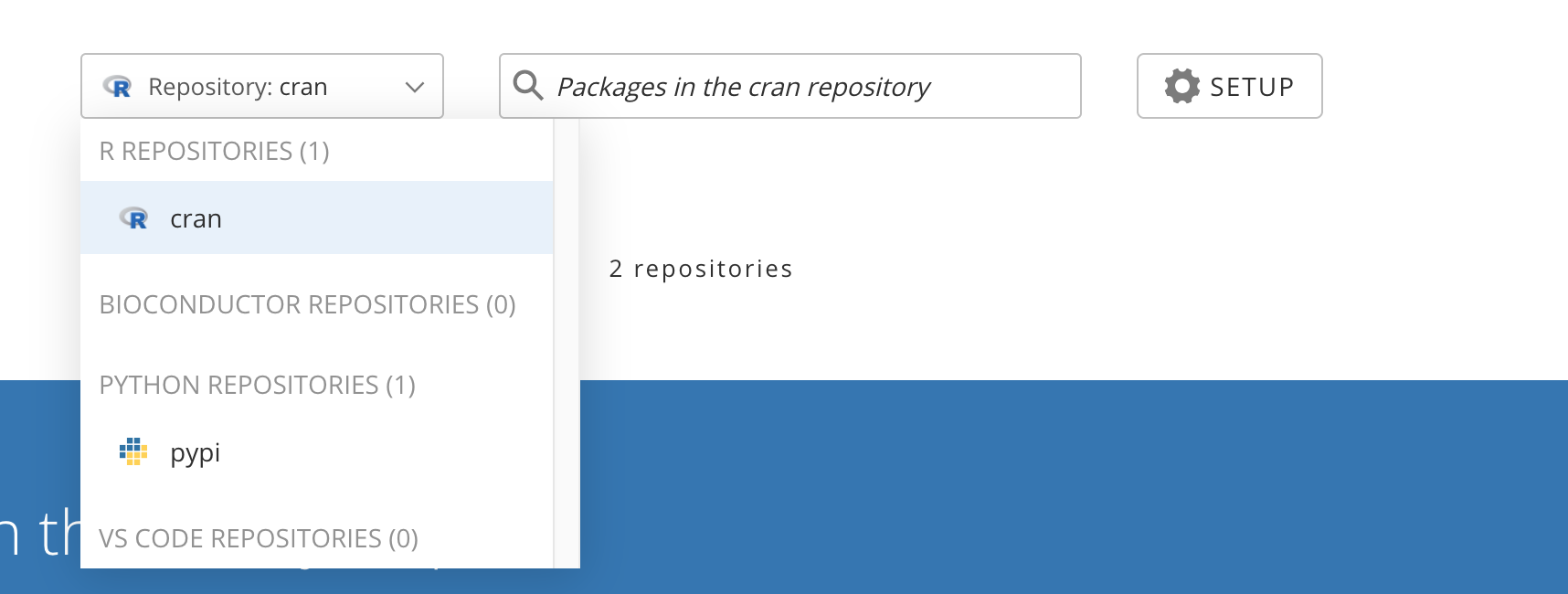
Navigate to the web interface of your Package Manager installation by clicking on the tab at the top, refresh the page (by clicking on the circular arrow in the top right corner). Verify that the two repositories you created are listed when you click on “Change Repository”, and that you can see packages populated in the interface when you click “Browse all” for each repository.
A Few Configuration Tips
To avoid having to prefix
sudoto everyrspmcommand, you can add your user (in this labubuntu) to therstudio-pmgroup with the following command:Terminal
sudo usermod -aG rstudio-pm ubuntu- Restart your shell (in Instruqt, this can be done by clicking on the refresh arrow in the top right corner of the terminal window).
- Confirm that the group ownership for your user is correct by typing
groupsin the terminal and checking thatrstudio-pmis listed. - Run
rspm listwithoutsudoto confirm that you can runrspmcommands withoutsudoand see the same output as before.
- License file activation is recommended because it needs no external activation service, which suits the air-gapped and firewalled environments where Package Manager is common.
- A fresh installation defines no repositories: you make packages available by creating repositories and subscribing them to sources such as CRAN and PyPI.
- Pin the installed version and
apt-mark holdit so routine system maintenance cannot upgrade Package Manager without your control. - Know the key paths: configuration lives in
/etc/rstudio-pm/rstudio-pm.gcfg, therspmCLI in/opt/rstudio-pm/bin/, and the data directory/var/lib/rstudio-pm/is what you back up.